To adjust the alignment of text on a document in Microsoft Word you can use two different methods.
Method 1:
- Highlight the text you wish to alter, and click the alignment buttons across the top of your ‘Home’ tab to best suit where the text should go

Method 2:
- If you need to make a further adjustment to the location of your text, you can use the ruler at the top of the page to adjust text

- Please note that the ruler may not be visible depending on your settings. To make the ruler visible, you can tick the button on the ‘View’ tab

- To change the alignment of text using the ruler, highlight the section you wish to move and then use the small icons at the top and bottom of the ruler to move the text. If you press and hold on the icon, a vertical dotted line should appear to show you where the text is currently aligned to

- For example, highlighting this paragraph and then adjusting the ruler gives this result:
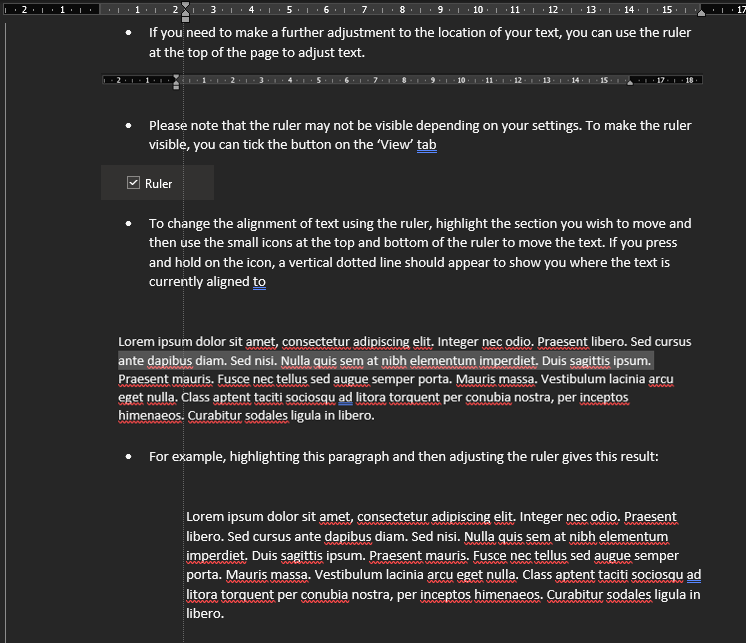
- You will be able to move the paragraph across the page, and the dotted line will act as a guide
Was this article helpful?
That’s Great!
Thank you for your feedback
Sorry! We couldn't be helpful
Thank you for your feedback
Feedback sent
We appreciate your effort and will try to fix the article