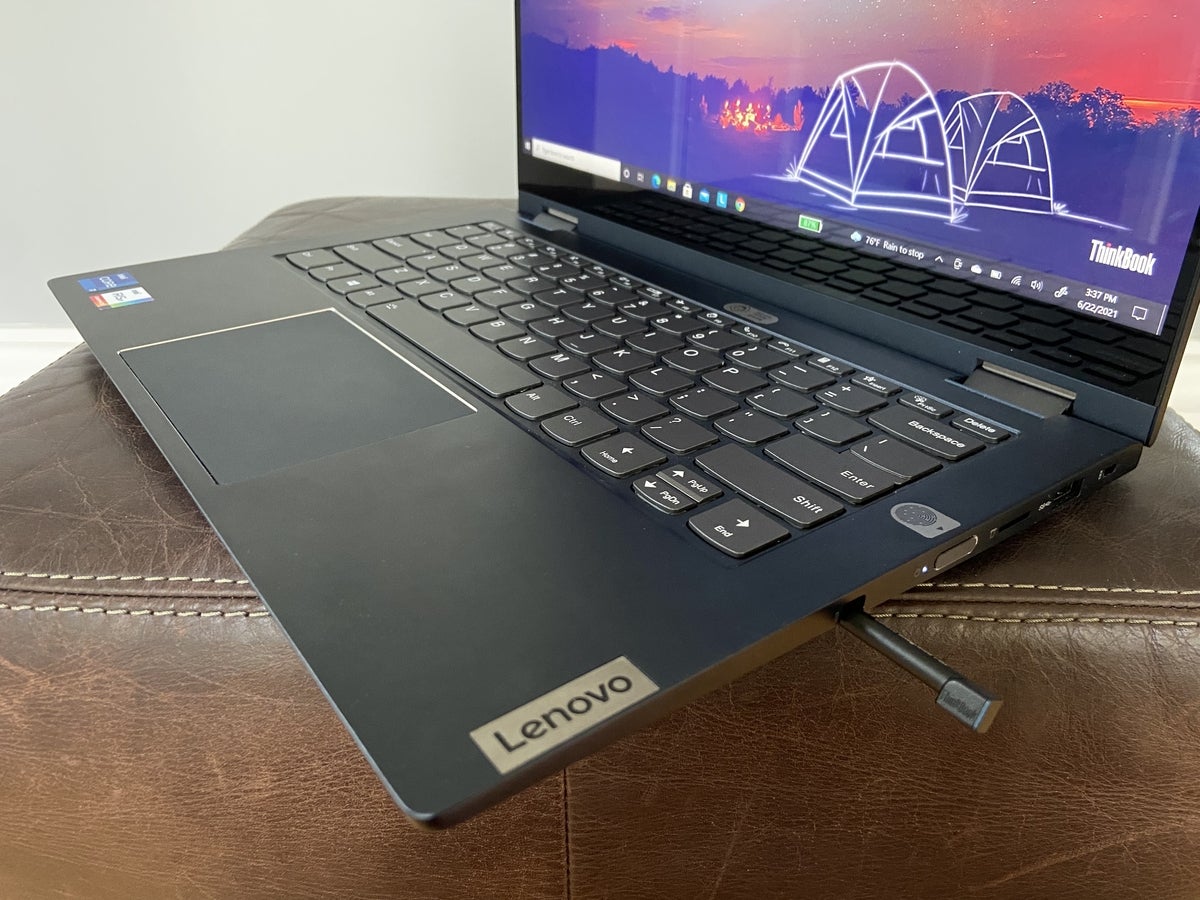
Remove the laptop pen from the right-hand side of your Lenovo laptop.
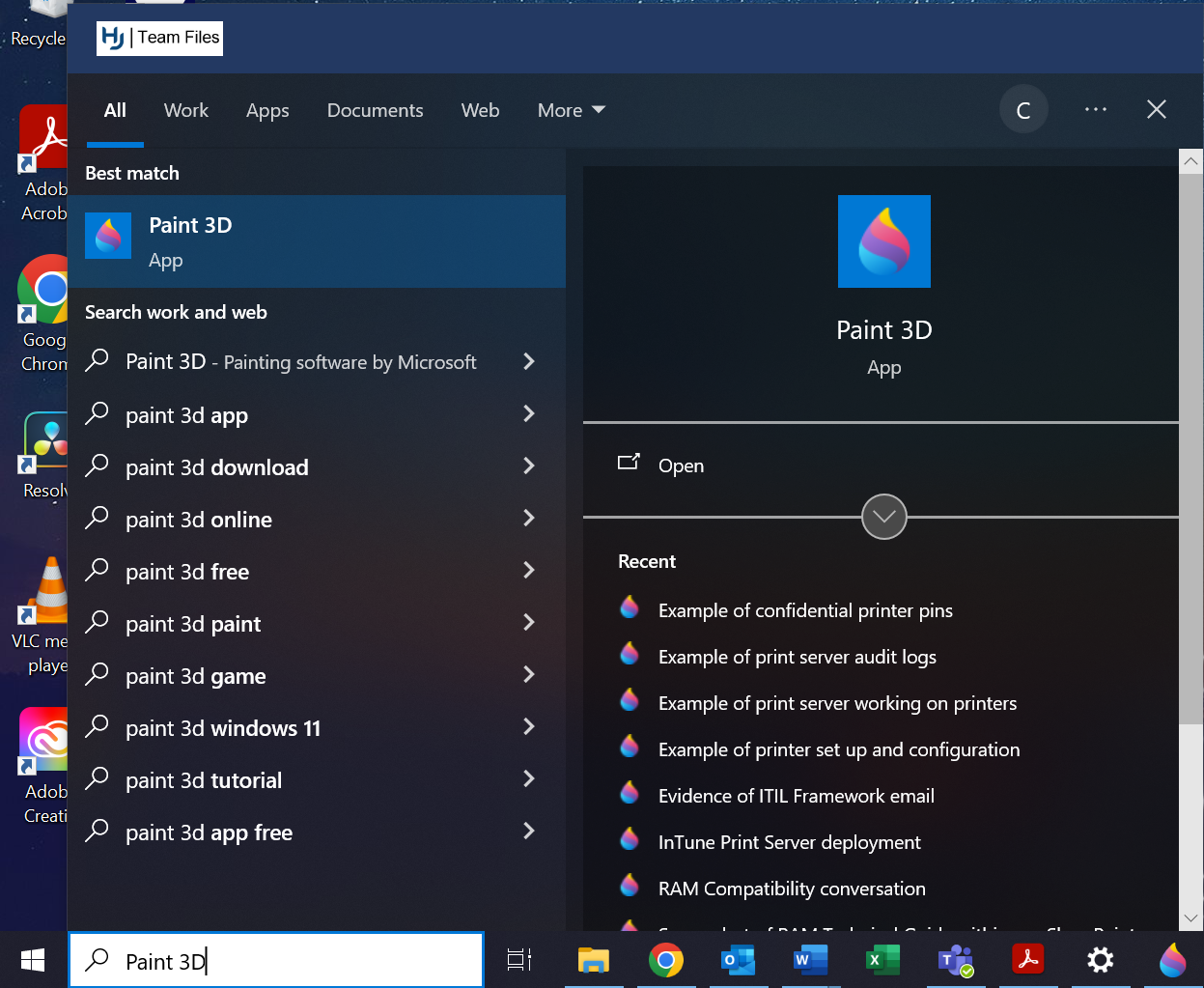
Open the application ‘Paint 3D’, by clicking the search bar at the bottom left of your laptop screen and searching for it.
Use the laptop stylus to write your signature on Paint 3D.
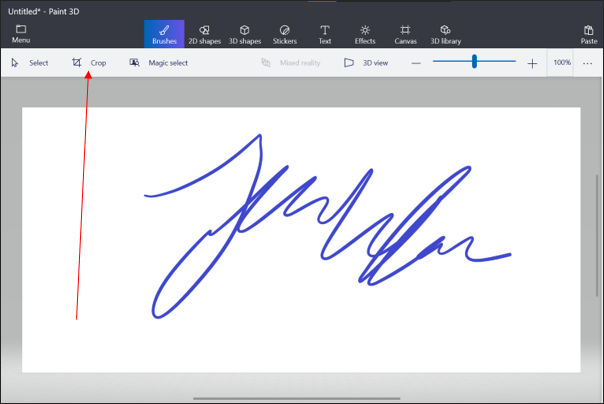
If you’d like to crop the image to remove some of the dead space on either side of the signature, select the ‘Crop’ button and remove the blank space for a smaller image.
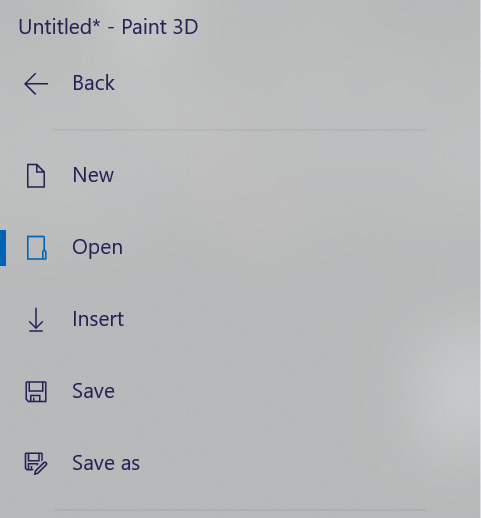
Once done, select ‘Menu’ at the top left of Paint 3D.
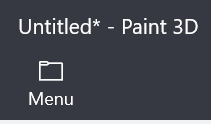
Click ‘Save’ in the Menu.
Name the file ‘E Signature image’.
You now have a saved copy of your signature ready to be inserted into documents.
Was this article helpful?
That’s Great!
Thank you for your feedback
Sorry! We couldn't be helpful
Thank you for your feedback
Feedback sent
We appreciate your effort and will try to fix the article