This guide will demonstrate how to book a meeting room through Outlook when setting up a meeting.
- Click the Calendar icon at the bottom left of Outlook.

- At the top of Outlook, select ‘New Meeting’.

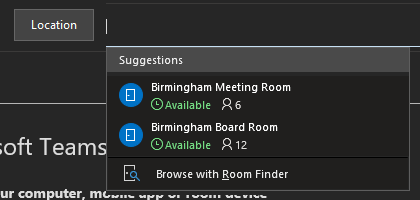
- In a new meeting, add the ‘Required’ attendees, the ‘Start time’ and the ‘End time’, then click the ‘Room Finder’ button at the end of the ‘Location’ field.
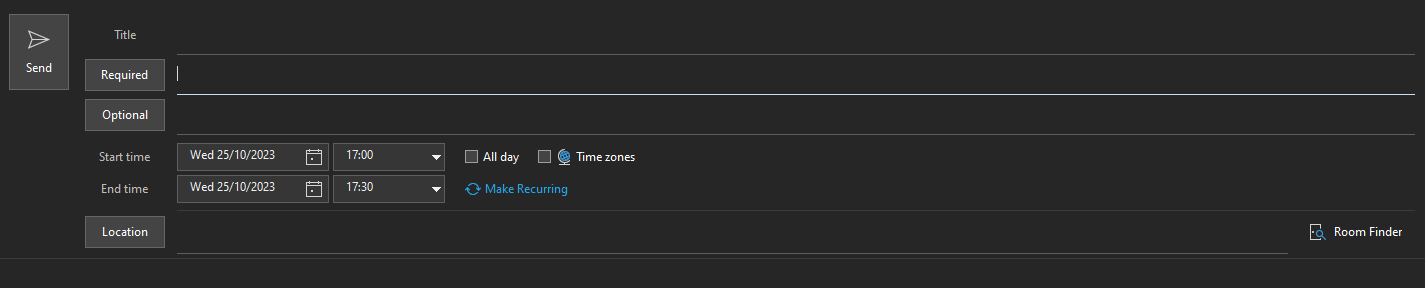
- Choose the room specifics on the ‘Room Finder’. These conference rooms are set up by your administrator.
- If the meeting has multiple attendees and busy conference rooms, it can be difficult to find a time that works for everyone. To find availability for people and rooms, select the ‘Scheduling Assistant’ button on the ribbon, then select ‘AutoPick’ and choose the appropriate criteria.
- After you find an appropriate time slot and add a conference room to the meeting, select ‘Meeting’ on the ribbon. You can then close the Room Finder.
- When you have finished setting up the meeting and added all recipients select ‘Send’.
Was this article helpful?
That’s Great!
Thank you for your feedback
Sorry! We couldn't be helpful
Thank you for your feedback
Feedback sent
We appreciate your effort and will try to fix the article